
This is a subject that I have wanted to cover here, but for whatever reason, I just haven’t. Other things seem to catch my interest, and I keep blowing it off.
But because I am beginning to volunteer at a senior center, and seem to be becoming everyone’s tech guy they run to, it’s time to address it.
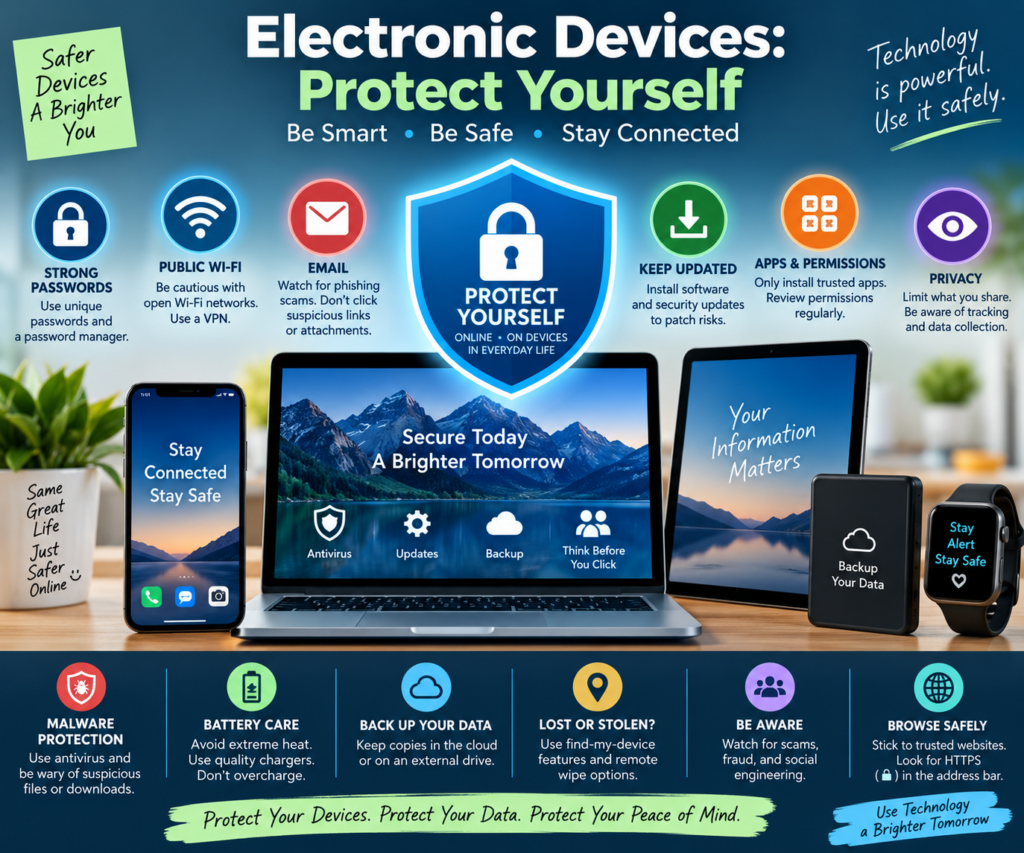
What I will cover in this post, with regard to the threats and how you should protect yourself, is pretty much the same whether you are using a phone or a computer.
If I think a threat or subject I am talking about is unique to a specific type of electronic device, I will make sure I address that fact in my overview.
Index
Open Wi-Fi
Malicious Advertising
Passwords
Email
Using Public Computers
Software Updates
In Closing
Open Wi-Fi
One of the very first topics I want to cover is open Wi-Fi, whether it is at a hotel, restaurant, coffee shop, or wherever else you may find it.
The problem with open Wi-Fi isn’t necessarily the establishment providing it. The problem is that someone could create a fake Wi-Fi network using a name that looks exactly like, or very similar to, the establishment’s real Wi-Fi network. You think you are connecting to the hotel’s Wi-Fi, for example, when you are actually connecting through someone else’s equipment.
You may wonder why this is a problem.
If you connect to a malicious Wi-Fi network, the person controlling that network is now sitting between your device and the internet. Modern websites using HTTPS encrypt most of the information traveling between you and the website, so simply being on a malicious Wi-Fi network does not automatically give someone your passwords or banking information.
However, that does not make a fake Wi-Fi network harmless. An attacker may try to redirect you to fake websites, trick you into entering information into a fake login page, interfere with unencrypted traffic, or convince you to ignore browser security warnings.
The big concern is usernames, passwords, financial information, and other personal information. If you are tricked into entering that information into a fake website, you may have just handed it directly to the attacker.
Before connecting to public Wi-Fi, make sure you are connecting to the establishment’s actual network. If you are unsure, ask an employee for the correct Wi-Fi network name rather than simply choosing the first network that looks right.
There are things you can do to help protect yourself against these threats. Two tools I recommend are antivirus/security software and VPN software.
Antivirus software is no longer just about finding viruses on your device. Some security programs can also warn you when you are trying to connect to a known malicious or suspicious website. Right now, I am using the free version of AVG, which includes protection that can help identify and block malicious websites.
You can find AVG at its official website:
The second tool is a VPN, or Virtual Private Network. This is especially useful when you are using public Wi-Fi. A VPN creates an encrypted connection between your device and the VPN provider’s server. This makes it much more difficult for someone operating or monitoring the local Wi-Fi network to see the internet traffic traveling from your device.
A VPN also provides another layer of protection when you are dealing with internet traffic that isn’t already protected by HTTPS. However, a VPN does not make a malicious website safe. If you willingly enter your password into a fake website, a VPN cannot protect you from giving that information to the attacker.
I also use a free VPN for this protection. The one I currently use is Proton VPN.
You can find Proton VPN at its official website:
One important warning when downloading either of these programs, or any security software: make sure you are getting it from the company’s official website or an official app store.
If you are using a phone or tablet, use the official app store for your device, such as the Google Play Store on Android or Apple’s App Store on an iPhone or iPad. Do not download an application from a link on some random website just because it claims to be AVG, Proton VPN, or another trusted application.
There are fake websites and applications designed to imitate legitimate software companies. The last thing you want to do while trying to protect your device is accidentally install malicious software.
Neither antivirus software nor a VPN makes you completely safe. Think of them as additional layers of protection. You still need to pay attention to what Wi-Fi network you connect to, what websites you visit, and what information you provide.
Malicious Advertising
Let’s talk about a different way you can end up on a malicious website.
Almost everywhere we go on the internet, we see advertisements. In many cases, these ads are not being provided directly by the website you are visiting. Advertising is a source of revenue for many websites, and the ads themselves may be supplied by outside advertising networks.
The website may have some control over what types of advertisements it allows, but it usually does not personally inspect every advertisement before it appears on your screen. Unfortunately, malicious advertisements can sometimes make their way through these advertising systems. This is commonly called malvertising.
I am not saying that you should never click on an advertisement. I am saying that you should be careful when you do.
An advertisement can look completely legitimate and still send you somewhere you did not expect. You could end up on a fake shopping site, a phishing page asking for personal information, a fake software download page, or another malicious website.
This is another reason I recommend having security software running on your device. Depending on the software and features you are using, it may check websites against lists of known malicious sites, warn you before opening a suspicious site, or attempt to block malicious activity.
But once again, the software is another layer of protection. You are still the most important layer.
Before entering a password, credit card number, banking information, or other personal information after clicking an advertisement, stop for a moment and look at where that advertisement actually took you.
Passwords
Let’s now talk about passwords.
This is one of those security subjects that almost everyone has a problem with. Every place you go wants a user ID and password. We have email accounts, banking sites, social media, shopping sites, streaming services, medical sites, government sites, and the list just keeps growing.
Security experts will tell you that you should have a different password for every account. They are right. The problem is remembering them.
I am sorry, but expecting someone to remember dozens, or possibly hundreds, of different complicated passwords just isn’t realistic.
A password manager or password vault can solve much of this problem by storing your passwords for you. But even then, there may be times when you need a password and don’t have convenient access to your password vault.
Write them all down?
Yea, yea. You can do that. But maintaining a written password list is both a pain in the ass and a security risk all of its own. Lose that list somewhere and somebody else finds it? Congratulations. You may have just handed someone the keys to your digital life.
Just saying.
So we need to find a reasonable balance between passwords that we can actually manage and passwords that provide us with decent security.
When it comes to passwords, I pretty much know what many of us have been told for years when creating one. Make it at least 12 characters long, use uppercase and lowercase letters, numbers and special characters, and don’t use real words.
Yea, yea.
Some of that advice has changed over the years. Length and having a unique password are extremely important, and using words in a longer password or passphrase isn’t necessarily a bad thing. But we still need passwords that are reasonably difficult to guess while also being something we can actually remember.
Again, I don’t think remembering a bunch of completely random passwords is realistic unless you always have access to a password manager. Personal opinion, but I am sure many of you will agree with me.
So, I will give you an example of the type of password I am talking about.
Shut up, my AI assistant ChatGPT (Gadget). I am trying to make people’s lives easier.
!H0rsePuck3y!
Yes, it contains recognizable words. But it isn’t based on anything personal about me. It uses uppercase and lowercase letters, numbers and special characters, and it is long enough to be considerably better than something obvious such as a pet’s name followed by 123.
Is this the absolute best practice? No. A long, randomly generated, unique password stored in a password manager would be stronger.
But we also live in the real world. A longer password or passphrase that you can actually remember can be a reasonable compromise, especially if you never reuse that password for another important account.
My last piece of advice about passwords, which again probably goes against some of the advice you have heard, is to break your accounts into categories based on how important they are.
Anything that has money tied to it or contains sensitive personal information should get your strongest protection. Banks, credit cards, medical accounts, government websites and similar accounts should absolutely have strong, unique passwords. Never use those passwords anywhere else.
Social media is another category where I think you need to be careful. Your name, photographs, friends, conversations and possibly years of your life are tied to these accounts. If someone gets into your social media account and starts posting as you, it is going to be another pain in the ass to straighten out. I would protect these accounts with unique passwords also.
Then we get down to things such as a news website where you created an account just so you could leave a comment. Is that account as important as my bank account? Eh, not so much.
And finally, we have what I call the bullshit sites. You know the ones. You create an account because some website insists that you need one before it will let you do something you wanted to do once.
This is where I personally accept some risk. I can create a password that I use within that category. The important part is that the password stays inside that category. I don’t use it for my bank, credit cards, medical information, government accounts, email, social media or anything else that I actually care about protecting.
If one of those bullshit sites gets hacked, somebody may get the username and password I use for some of my other bullshit sites. That’s certainly not ideal. But they haven’t gotten the password to my bank account, email or anything else important because those accounts have completely different passwords.
Is that perfect security? Nope.
It is risk management. Decide which accounts could really hurt you if someone got into them and give those accounts your strongest and most unique protection. Then make damn sure the passwords you use for less important accounts never cross over into the categories that actually matter.
Now, let’s talk about email.
Email is a serious pain in the ass. Everyone and everything wants your email address, and everyone and everything seems to want to send you something.
If you are receiving a lot of spam or malicious email, there is a good chance that your email address is now in the wild. Maybe it came from a data breach, maybe you provided it to a company that shared information with someone else, or maybe it was collected some other way. However it happened, once it is out there, you should assume that people you don’t know may have it.
That does not mean you have to panic. It means you have to pay attention.
If an email looks like it came from your bank, Mastercard, a credit card company or another financial institution, the first thing I want you to do is stop before clicking anything.
If the email tells you that there is a problem with your account and asks you to log in, DON’T USE THE LINK IN THE EMAIL.
Open the institution’s official app yourself, use a bookmark you already have, or manually go to the institution’s official website. If there really is a problem with your account, you should be able to find out after logging in through a method that you know is legitimate.
Also look carefully at the sender’s email address. Don’t just look at the name displayed beside it. An email may say that it is from “Mastercard Security” or the name of your bank while actually coming from a completely unrelated address.
Even the address deserves a close look. Criminals can use addresses and domain names designed to look very similar to legitimate ones. One changed, added or missing character may be all that separates a legitimate address from a fake one.
And remember, a sender’s address that looks legitimate by itself is not proof that the message is legitimate.
If it is simply spam, treat it as spam. Modern email programs and services have tools specifically designed to deal with it. Use the Spam or Junk button. That also helps your email provider recognize similar messages in the future.
If someone appears to be impersonating a legitimate business, don’t respond to the suspicious email. If you want to report it, contact the business using contact information you obtain independently from its official website or app. Then report the suspicious message as spam or phishing through your email provider.
The biggest piece of advice I can give you about suspicious email is incredibly simple: don’t let the email decide where you go next.
If your bank supposedly needs you, go to your bank yourself. If your credit card company supposedly needs you, open its app yourself. If Amazon, Facebook, Microsoft or anyone else supposedly needs you to log in, go to that service yourself instead of following the road provided by a suspicious email.
Using Public Computers
Let’s talk about public computers. You may find them at a library, government agency, hotel, senior center or any number of other places.
I am probably more anal about how I deal with public computers than the average person. I take precautions that I don’t expect most people to know how to do. And since my personal computer died, I have had to use public computers for almost everything.
The problem with a public computer is simple. It isn’t your computer.
You don’t know who used it before you, what they did with it, what software is installed on it or who is going to sit down at it after you leave. Even when the organization maintaining the computers does an excellent job, you should still treat a public computer differently than you treat your own.
So, what can you do?
Use a private or incognito browser window whenever possible. This helps prevent the browser from keeping your browsing history, cookies and other information after you close the private session. It is not perfect security, and it does not protect you if the computer itself has been compromised, but it is an easy additional precaution.
Never allow the browser to save your password. If you see a message asking whether you want Chrome, Firefox, Edge or another browser to remember your password, the answer on a public computer is always no.
Log out of every account when you are finished. Don’t just close the browser window. If you logged into your email, social media, a website or any other account, use that site’s actual Log Out or Sign Out option.
Be very careful with financial and other highly sensitive accounts. Personally, if I can avoid doing my banking, credit card management, medical accounts or anything similarly sensitive on a public computer, I do. I would rather use my own phone or wait until I have access to a device I trust.
Don’t leave the computer unattended while you are logged in. It doesn’t take a computer expert to cause you problems if you leave your email or another account sitting open on the screen while you walk away.
Delete anything you downloaded. If you downloaded a bank statement, tax document, medical record, résumé or anything else containing personal information, make sure you remove it from the computer when you are finished. Also remember that simply deleting a file may not be enough on every public computer, which is another reason I avoid downloading sensitive documents unless absolutely necessary.
Remove any USB drive or other device you connected. This sounds obvious until you walk three blocks away and suddenly realize your flash drive is still sticking out of the library computer.
Close every browser window when you are finished. If the public computer provides a Log Off, Sign Out or Restart option for ending your session, use it. Some public computer systems are specifically designed to clear a user’s session when this is done.
And one final thing: don’t assume that using a private browser window makes a public computer safe. Private browsing is primarily designed to keep the browser from retaining information about your session. It cannot guarantee that the computer itself is free from malicious software.
That brings us right back to risk management.
I use public computers because right now I need them. But I also recognize that they are not my computers, I don’t control them, and there are certain things I would rather not do on them.
Sometimes the best security decision is simply deciding, “This can wait until I am on a device I trust.”
Software Updates
Finally, let’s talk about software updates.
This is actually very important. Software updates occur for many reasons. They may add new abilities, fix bugs, improve performance or correct problems that have been discovered since the software was released.
But one of the most important reasons for keeping your software updated is security.
When a security vulnerability is discovered in an operating system, browser, application or other piece of software, the company responsible for that software will often release an update to fix it. Once that vulnerability becomes known, you really don’t want to be one of the people still running the old vulnerable version.
This is especially important with your operating system. Whether you are using Windows, macOS, Android or an iPhone, keep your operating system up to date.
The same applies to your web browser. We spend a huge amount of our time on the internet through Chrome, Firefox, Edge, Safari and other browsers. Your browser is one of the main doors between your device and the internet, so keeping it updated is important.
Don’t forget your applications either. Apps on your phone and programs on your computer can also contain security vulnerabilities that are corrected through updates.
Whenever possible, I recommend allowing automatic security updates. I know updates can be annoying. They seem to appear at the worst possible time, sometimes require a restart and occasionally an update causes problems of its own. I understand why people put them off.
But don’t put them off forever.
There is also another issue that people sometimes don’t realize. Eventually, companies stop supporting older operating systems and software. Your computer or phone may still work perfectly well, but that doesn’t necessarily mean it is still safe to use. Once security updates stop, newly discovered vulnerabilities may never be fixed.
Now I want to talk about something that really pisses me off.
You are browsing the internet and suddenly a big warning appears telling you that your computer is infected. Maybe it says that five viruses have been detected. Maybe it says your antivirus protection has expired or your browser is dangerously out of date.
It may even use the logo of Microsoft, Google, an antivirus company or another company you recognize. It may flash, make noise, display a fake virus scan or give you a telephone number that you are supposed to call immediately.
Don’t panic and don’t click anything on that webpage.
Do not call the telephone number. Do not download the software it wants you to download. Do not enter your password, credit card number or any other personal information.
The warning itself may be the threat.
Sometimes you can simply close the browser tab or window and be done with it. Unfortunately, some of these malicious webpages deliberately make themselves difficult to close. They may repeatedly open warning boxes, switch your browser into full-screen mode or otherwise make you feel like you are trapped on the page.
If the normal X will not close the window, don’t start clicking buttons inside the webpage trying to escape.
On a Windows computer, try pressing Alt + F4 to close the browser window. If that doesn’t work, press Ctrl + Shift + Esc to open Task Manager. Find your web browser, select it and choose End Task.
If you are using a phone or tablet, leave the browser using your device’s normal controls and close the browser from your recent applications. If you still cannot get rid of the page, restart the device.
And if all else fails on a computer, restart it. Losing whatever you were doing in your browser is a lot better than clicking your way through a malicious webpage because you couldn’t figure out how to make the damn thing go away.
When you reopen your browser, be careful if it asks whether you want to restore your previous session. Restoring that session may reopen the same malicious webpage.
If you are still concerned that there really might be something wrong with your device, open the antivirus or security software that is actually installed on your device and run a scan yourself.
There is also a very simple rule for legitimate updates. Get operating system updates through the update system built into your device. Get phone and tablet applications through the official app store. Update browsers and other programs through their built-in update systems or obtain the update directly from the software company’s official website.
Never let some random webpage decide where you get your security software or software updates.
Updates can be annoying. Getting your information stolen because you ignored a security update, or because you installed a fake one, is considerably more annoying.
In Closing
There is a lot of information here, and I am not saying that my advice is always going to be exactly what the security experts recommend. Whatever. I am trying to give you advice that is practical and that you can actually use.
Because there is so much information involved with electronic security, I tried to break things down into simple solutions. The idea is to develop habits that, after a while, simply become muscle memory.
Install antivirus software and a VPN. Once you have them installed and configured, other than keeping the software updated and paying attention when it warns you about something, that is pretty much a one-time job.
Passwords? Think of them as risk management. Protect the accounts that can really hurt you if they are compromised with your strongest and most unique passwords. Keep those passwords completely separate from the less important accounts.
Public computers? Don’t trust them. If you have to use them, be cautious about what you do, what information you enter and what you leave behind when you are finished.
Malicious websites and advertisements? Pay attention to where you are being sent before you enter any personal information.
Email? Don’t automatically trust something just because it looks official. Look at where it came from, and if an email tells you there is a problem with an important account, go to that company’s website or application yourself instead of blindly following a link in the email.
And keep your software updated. Those annoying updates aren’t always about giving you some new feature you don’t care about. Sometimes they are fixing a security problem that you definitely should care about.
None of these things individually will make you completely safe. There is no application, VPN, antivirus program or password that can do that.
What you can do is add layers of protection and develop good habits.
After a while, you don’t have to stop and think about every one of these things. You just do them.
And that may be the most important security tool you have: making caution a habit.